Power · Data · Displays
USB-C Cable Buyer’s Guide
The USB-C plug only tells you that it fits. Four questions—what it must do, what your devices support, which numbers matter, and what the listing proves—will tell you which cable to buy.
-
Step 1 · Choose the job
Start with the hardest thing the cable must do.
Do not shop for “a USB-C cable.” Shop for a charging cable, a drive cable, or a monitor-and-dock cable. If one cable will do several jobs, buy for the most demanding one.
-
Charge a phone or tablet
For charging alone, flexibility and a trustworthy maker matter more than data speed.
Look for 60 W 480 Mbps data is fine if you rarely move files. -
Charge a laptop
Read the wattage on the laptop’s charger. The cable rating must meet or exceed it.
Match the charger 60 W or 240 W Choose 240 W when the charger is rated above 60 W. -
Use a portable SSD or make backups
A charge-focused cable can make a fast drive feel painfully slow.
Match the drive 10 Gbps or faster Use the drive’s advertised speed as your minimum. -
Connect a monitor or desk dock
Video, storage, networking, peripherals, and charging may all share this cable.
Verify explicitly Video + enough watts 40 Gbps is a sensible target for a busy dock.
-
-
Step 2 · Check the ports
Make sure both devices support the job.
The cable is only the middle of the connection. Check the specifications for the computer or charger and the device, dock, or display at the other end.
USB-C describes the connector shape. It does not promise a charging wattage, data speed, or video support.
- 1 Computer or charger What it can send
- 2 The cable What it can safely carry
- 3 Drive, dock, or display What it can receive
The connection runs at the best capability all three share. A 40 Gbps cable cannot turn a 10 Gbps computer port into a 40 Gbps one, and a 240 W cable does not force 240 W into a phone.
-
Step 3 · Read the label
Find two numbers. Ask one question.
Look near the plug and on the packaging. Read power and data separately; then confirm video if your job needs it.
- Watts W
-
60 W or 240 W
This is the cable’s charging ceiling. Older cables and listings may say 100 W.
- Speed Gbps
-
480 Mbps to 80 Gbps
This is the data ceiling. No speed number means high-speed transfers are unproven.
- Video ?
-
Explicit support required
Look for DisplayPort, USB4, or Thunderbolt support across the entire connection.
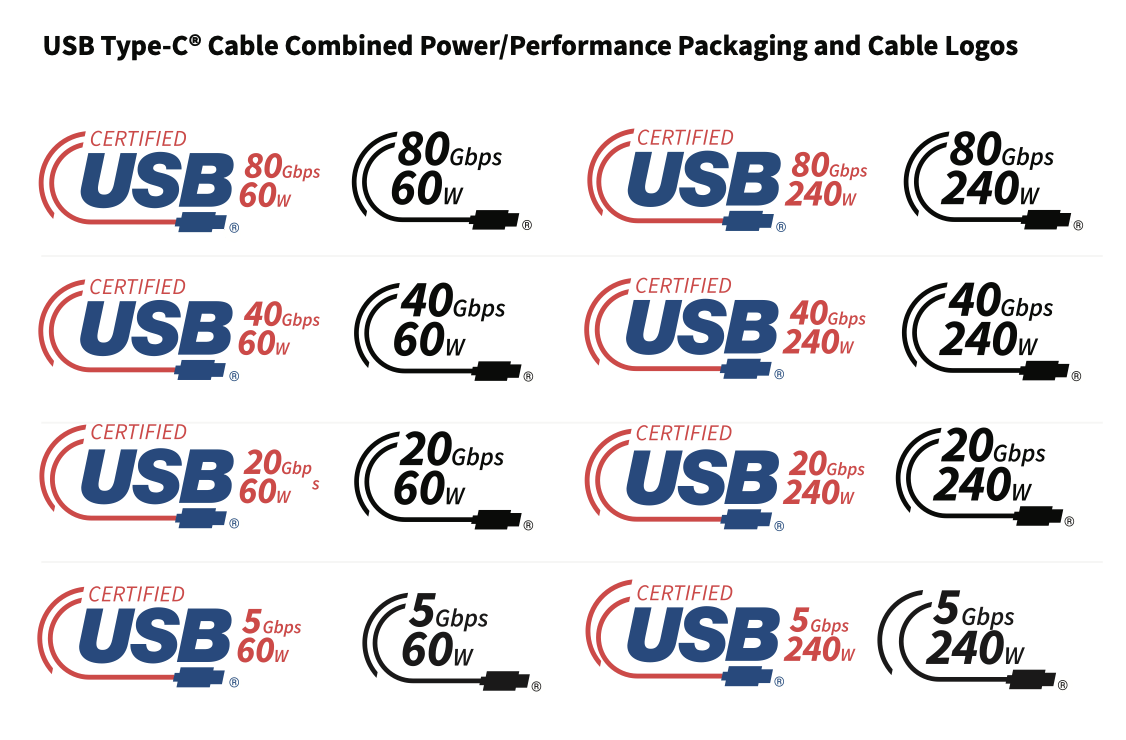
Official USB Implementers Forum (USB-IF) examples. Each colored packaging badge is paired with the black mark used on the cable. Read the data rate in Gbps and the power rating in W. View the official cable-logo guide. Power marking only
Good evidence for charging. It tells you nothing about fast data or video.
Thunderbolt generation
Thunderbolt 4 supports 40 Gbps; Thunderbolt 5 supports 80 Gbps bidirectional. The number is not a wattage.
The power-only and Thunderbolt examples are simplified reading keys, not certification marks. Verify certification claims in the USB-IF database of certified products.
-
Step 4 · Check the proof
Make the listing answer every requirement.
Price is only a hint. Before buying, confirm that the product page makes specific promises for the exact cable length you selected.
The wattage is stated. It meets or exceeds the charger your device uses.
The data rate is stated. It matches your drive, dock, or other fastest device.
Video is named when you need it. “USB-C compatible” by itself is not enough.
The speed applies to your chosen length. Long passive cables may not carry the highest speeds.
Ready to buy
I need this cable for _____. It supports _____ W, _____ Gbps, and video if I need it at the length I chose.
If the listing does not let you fill in those blanks, keep shopping.
For cables you already own
When you do not know the rating, test the cable.
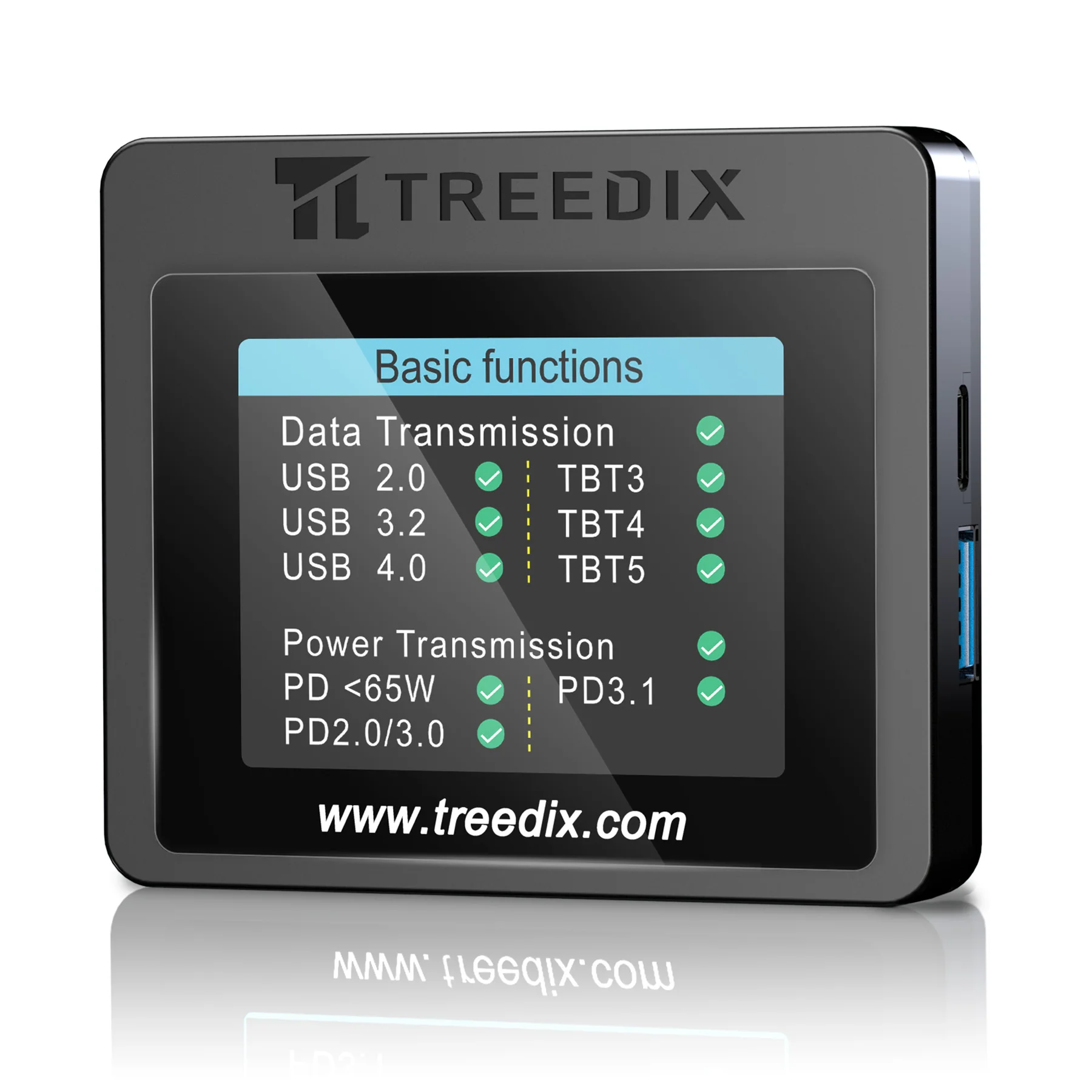
If you already have a cable and do not know what it is rated for, a device like the Treedix USB Cable Tester can help. It checks continuity, shows whether data and power connections are present, measures internal resistance, and reads the electronic marker (eMarker) information stored in compatible USB-C cables.
For practical purposes, assume an unmarked cable is a basic, low-spec cable until its packaging or a test proves otherwise. The tester is useful for sorting a cable drawer and spotting obvious faults, but maximum transfer speed and video support still depend on the complete connection.
See the Treedix USB Cable Tester Non-affiliate recommendation.